

By Heinz Richter
Portraits are a form of photography that can be done in a variety of ways, requiring different skill levels. The easiest and probably the most widely used are snapshots of individuals or groups. Nothing wrong with that, but the outcome is mostly left to chance.
I have always been an advocate of exercising as much control as possible when taking a photograph, portraits included. Even when taking just a simple snapshot, there is a level of control we can exercise. This begins with choosing the individual or individuals we want to photograph. Since most people are not accustomed to be in front of a camera, it is best in most cases if the subjects are unaware that they are being photographed. Subsequently directions are out of the question. But we do have a choice of backgrounds in many cases. Simply changing camera position can lead to a more suitable background. This can also result in a different look of the lighting. In addition there is the choice of lenses. To remain more or less unnoticed, a longer lens can be quite helpful because it increases the distance to the subject(s).

A simple snapshot with just natural light


A simple snapshot is usually better when the photographer is unnoticed
Lighting for a portrait offers a huge amount of control and it has the possibility to bring out the best in whoever we photograph. That doesn’t necessarily require studio light or anything even close to that. Any available light source will suffice. Outside, during daylight hours, this means the oldest light source of them all, the sun.
Unfortunately the sun is also a difficult light source to deal with. Direct sunlight is very contrasty and renders a very harsh light which results in very harsh shadows. When we talk about controlling lighting, what we really do is controlling shadows. A harsh light source like the sun easily casts ugly shadows which, if not controlled, will result in an ugly portrait. With other words, the lit parts of a person are usually just fine, it is the shadows that will make or break the photograph.

The harsh shadows from direct sunlight usually make for a bad portrait.
While some of that can be corrected in Photoshop or similar programs,
it is preferable to correct this prior to taking the photo/
An easy way to avoid these ugly shadows is to avoid direct sunlight. The old Kodak advice to always have the sun in the back of the subject does work, but then you are also shooting into the sun which can create a whole lot of other problems.

Especially with a suitable background, having the sun in the back of the subject will result in an excellent outdoor portrait
Reflected light can be a very good light source because it is diffused and, as such, will not create harsh shadows at all. A light wall or side of a building can make a wonderful, soft light source.
Large trees can be quite helpful as well in modifying harsh sunlight. Having a person standing next to a tree will easily avoid direct sunlight. In addition, the side of the face closest to the tree will usually be darker than the other side and thus even create some modeling of the face. While we usually don’t carry umbrellas when it’s sunny outside, an umbrella can serve as a very useful light modifier, and it is easy to carry. On the other hand, it would require an extra person to assist during the shoot to hold it in place unless the camera is on a tripod and is triggered by remote release or the self timer.
Shaded areas generally increase exposure by a certain amount. If the background is in bright sunlight, this will lighten the background. With other words, this method of lighting also offers a certain amount of control over your background lighting. For instance, relatively dark trees like pine trees can be made lighter in the photograph.
It is even possible to darken the background in outdoor portraits, but this is more involved. To do so would require increasing the subject exposure by the use of a reflector or reflectors. A bright reflective material will shed additional light onto the subject, thus shortening the exposure. This in turn will also shorten the background exposure and render it darker. Even when no means to control the harsh shadows are available, an electronic flash can be used as so called fill flash by adding additional light to the shadows to lighten them and to make them appear less harsh. This too will slightly darken the background.
One of the best light sources for shooting indoors is window light. A large window renders beautiful, soft light. The position of the model relative to the window allows for a variety of different lighting effects like a front lit profile, with the model facing the window, or soft side lighting with the window to the side of the face. Changing the camera position offers further control.

This is a snapshot of Tiger Jack utilizing just window light

The window light in this case came from a large window off to the left of the subject
Without question, the most control over lighting is in a studio with studio lights. Of all the different types of lights available, I much prefer studio strobes. They have the advantage of the short flash duration which usually will eliminate any problems with subject or camera movement. However, simple electronic flash units are less than desirable because you cannot see the effects of the light until after the photograph has been taken. On-camera electronic flash is generally considered to be the least beneficial light source. Not only does it cast very flat lighting since it is emitted from the very camera position. The flash is usually on top of the camera, right above the lens, creating hardly visible, downward shadow. However, when shooting vertically, the light is off to one or the other side of the camera, casting an ugly shadow of the subject.

Studio strobes have the advantage of modeling lights which are a continuous light source positioned on the strobe such that they show the same lighting pattern as the strobe. They allow full visual control over your lighting and with multiple strobes you can control both your subject as well as your background lighting.

Not bad except for the ugly shadow on the right side of the picture
Studio strobes have the advantage of modeling lights which are a continuous light source positioned on the strobe such that they show the same lighting pattern as the strobe. They allow full visual control over your lighting and with multiple strobes you can control both your subject as well as your background lighting.

Typical studio strobe. The light for the modeling light and the flash tube are positioned such that they will cast an identical light pattern.
Another popular studio light are the so called hotlights. They utilize relatively powerful lightbulbs which emit enough light to render short enough exposure times to avoid subject or camera movement. However, as the name implies, they are also quite hot and can make shooting in a studio uncomfortable for the model as well as the photographer.
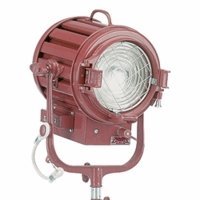
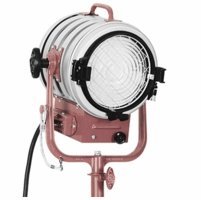
As of late studio lights with light emitting diodes (LED) have become available. These avoid the problem of excessive heat and thus are without question a better choice. But both hotlights as well as LEDs have one drawback. Since both of them have to be relatively bright to allow for useable exposure times, their brightness will also cause the model’s pupils to contract which renders less ideal looking eyes in the resulting photographs. The modeling lights in a studio strobe are not anywhere near that bright with the result that the pupils in the photographs are noticeably larger and thus more attractive. The bright light from the actual flash is much too short to allow for the pupils to contract.

However, there is one advantage to hotlights and LED lights. They can render exposure settings with the camera meter. Studio strobes do require a flash meter to determine the correct exposure settings.
Much has been written about lighting, lighting ratios and light modifiers. While lighting and its control is essential for a good portrait, I personally reject the use of lighting ratios, the difference in relative values between the lighter and the darker side of the face or any other preconceived setups. To me that is the photographic equivalent to painting by numbers. I feel it is much more important to visually control the lighting and, if it looks good, shoot. What lighting ration that results in is totally irrelevant.
Much has been written about lighting, lighting ratios and light modifiers. While lighting and its control is essential for a good portrait, I personally reject the use of lighting ratios, the difference in relative values between the lighter and the darker side of the face or any other preconceived setups. To me that is the photographic equivalent to painting by numbers. I feel it is much more important to visually control the lighting and, if it looks good, shoot. What lighting ration that results in is totally irrelevant.
When I was still teaching photography, I had a representative from Kodak come in to talk to my students about portrait lighting. To my horror, he continually harped on lighting rations without saying anything about light sources and their various effects. When it came time to demonstrate his “skills”, he pulled out several rolls of string which had markers attached to them. He then demonstrated setting up the lights within certain distances from the camera with the help of the markers on the strings to achieve specific lighting ratios, all the while totally ignoring the actual effects of the lights relative to the model. He didn’t even turn the lights on until he was finished with his setup.
Lighting is being described in many different ways, something that can quickly get confusing. I want to mention just a few basic examples which quickly make it clear what basic lighting is being talked about.

· Front lighting describes basic lighting from the front of the face. This can be used with the face toward the camera as well as with the profile of the person and any position of the face in between.

· Butterfly lighting is a form of front lighting, usually done with a less diffused or undiffused light source. When positioned correctly, the light will cast a small, butterfly shaped shadow directly below the nose.

· Side lighting has the light source off to one or the other side of the face by varying amounts.

· Split lighting is a more extreme form of side lighting and, as the name implies, has the light coming from one or the other side of the face with one half of the face lit and the other shadowed.

· Rembrandt lighting is a form of side lighting with the light source placed such that it will show a triangular shaped lit area of the eye and just under the eye in the otherwise dark area of the face. This expression is used because Rembrandt used this form of lighting in many of his paintings.

There are many more of these descriptions, but to me they quickly become confusing, if not ridiculous. After all, what on earth is John Wayne lighting?
Regardless of what light source is being used, in many cases the shaded areas will be too dark. To add light to the shadows an additional light source can be used. But in most cases a simpler approach is to use a reflector to add some additional light. The intensity of the added light is adjusted by moving the reflector closer or further away. The reflector can be lit by light from the main light source or it can be lit with a separate light.
Regardless of what light source is being used, in many cases the shaded areas will be too dark. To add light to the shadows an additional light source can be used. But in most cases a simpler approach is to use a reflector to add some additional light. The intensity of the added light is adjusted by moving the reflector closer or further away. The reflector can be lit by light from the main light source or it can be lit with a separate light.
Let’s look at lights and their effect on the lighting. In general, the smaller in size a light source, the harsher the light will be and cast the harshest shadows. Increasing the physical size of the light source will make the light softer, meaning the transition from light to shadows is more gradual. This doesn’t necessarily require a different light, we use light modifiers instead. A frame with a translucent material, placed in front of a harsh light can easily achieve that, but the lit area of the translucent material must be noticeably larger to have the desired effect. Just putting some diffusing material directly in front of the light will make little difference since the actual size of the light is not increased. Another way to achieve the same effect is to reflect the light off a white, reflective surface. Foam core sheets are very useful for that. I have used large 8x4 foot foam core panels which make a great diffused light source as long as most of the entire panel is lit. Taping two panes together such that they can be folded in the middle allows them to be set up without the need for any other stands etc.
Not only do these light modifiers allow for achieving very soft lighting, varying the size of the lit area on them allows to further change the amount of softness to just what is necessary. Other light modifiers are umbrellas and soft boxes. Umbrellas are especially convenient for transportation because they can easily be folded. They basically come as two types, reflecting umbrellas, where the light is reflected to the subject or diffusion umbrellas where the light shines through the umbrella. Here too the size of the lit area of the umbrella determines the softness of the light. Some umbrellas are designed to be used either way.
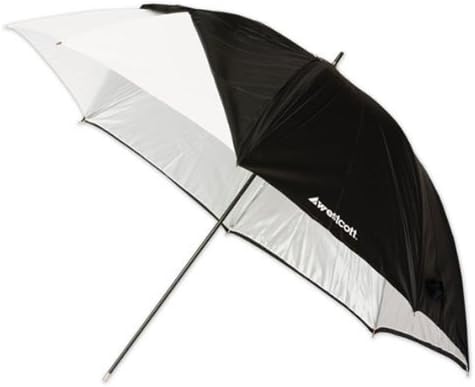
Reflective umbrella. By removing the black cover
it can also be used as a diffusion umbrella
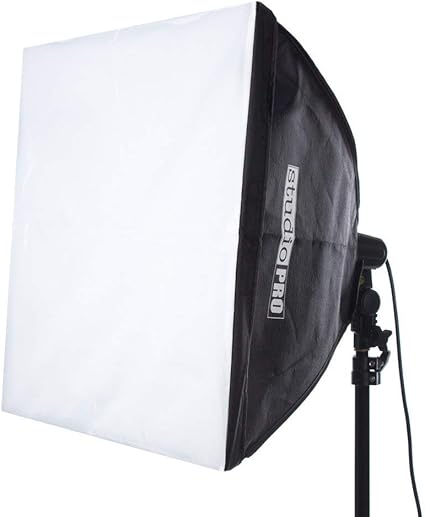
Typical soft box
Soft boxes are very similar. They are deigned to enclose the light source and soften the light relative to their size. The amount of softening with any of these light modifiers can further be influenced by varying their distance to the subject. The greater their distance from the subject the smaller they will be relative to the subject.


This was shot on stage with just stage lighting. Other than positioning the face,
no other changes could be made. I chose to position the face to show
Rembrand lighting.

Another example of Rembrand lighting.
Here too existing lighting was used

The soft lighting in this case was the result of a large garage type door opposite from the subjects,
creating the effect of window light.

The only light source here was a chandelier directly above the person. That created very harsh,
long shadows on the face. To lighten them, a large, white piece of cardboard was placed behind
the backrests of the seats in front of the person to reflect light upward.

Another example of utilizing stage lighting.
The steep downward angle of the light created a prime example of
butterfly lighting

Sometimes just outdoor lighting is not sufficient. In this case it rendered the face much too dark.
Reflectors did not add enough light to be useful. A studio strobe, set to match the outdoor lighting
of the background was the answer.

Hard, undiffused light can be quite attractive, providing it is used correctly.
Here the light was positioned such that no shadows can be seen on the face.

Rembrand lighting with a slightly diffused single light source
Rembrand lighting, utilizing the profile of the model with an undiffused
light source. A second light illuminated the left arm of the model
and to highlight the blonde hair.

With the model moving it is necessary to use a softer, diffused
light source like an umbrella to avoid harsh shadows which are
hard to control because of the movement.

A soft light source was positioned slightly to the left slightly above
the face, rendering a very soft illumination biased to the right side of the face.
A hotlight was used for this shot which rendered the pupils relatively small.
The same lighting with a studio strobe would have resulted in larger pupils.

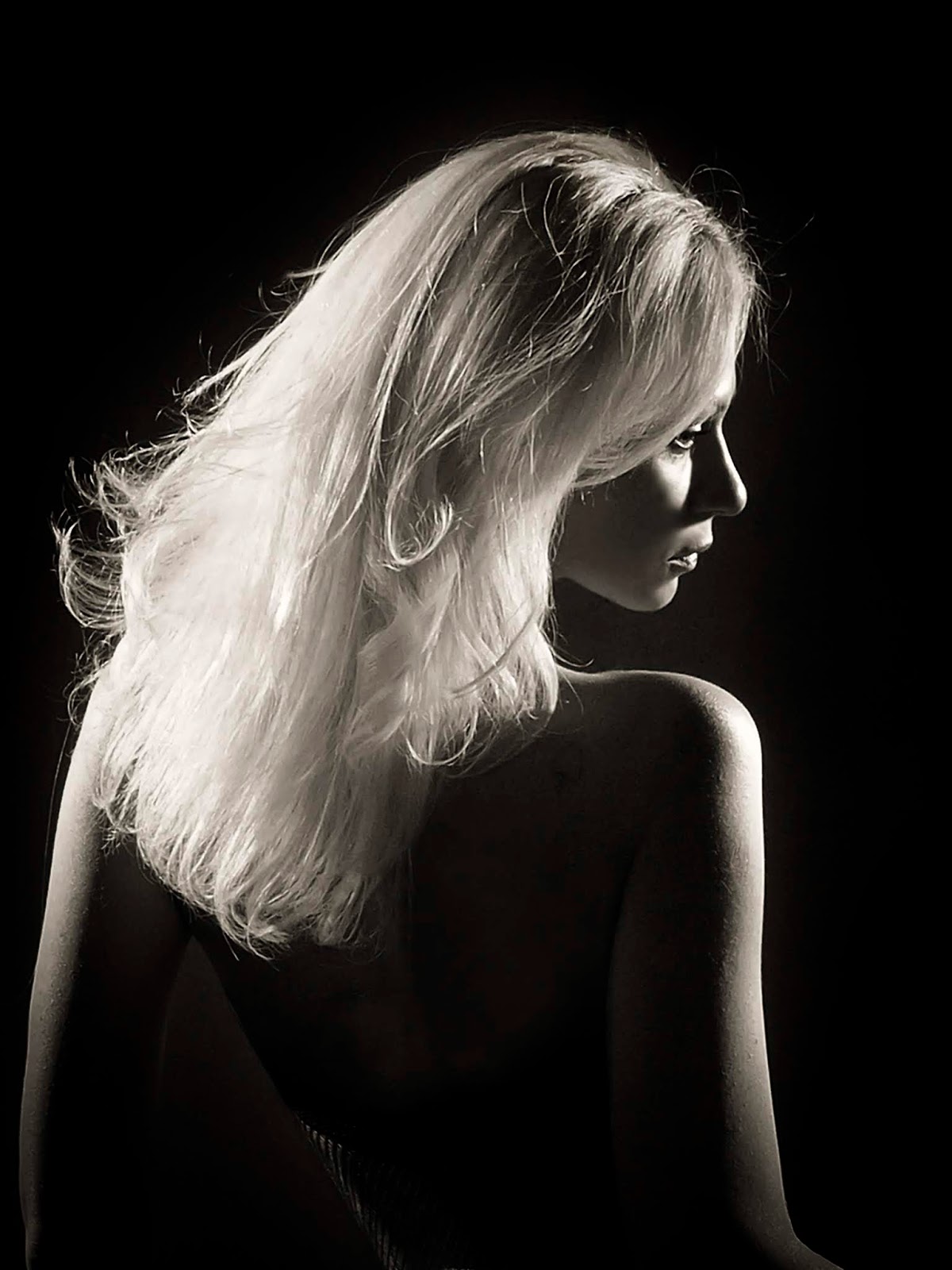
An undiffused light source was positioned to just light an outline of the face
and upper body, often referred to as rim lighting.

An undiffused light source is positioned to glance across the back
of the model. The illumination of the face was the result of some
light reflecting off the right shoulder of the model.

The harsh sunlight was easily controlled with the white hat of the
model. The shadow pattern of the sunlight shining through the
rim is an added benefit.

The initial lighting was outlining the face with rim lighting. To keep the other
side of the face from becoming too dark, extra light was reflected to the
left side of the face with a reflector. The soft light from the reflector was
adding light without ever giving the impression that a second
light source was used.

Problems with harsh sunlight can easily be avoided by placing the model in the shade as in this
outdoor model shot.

This is basically split lighting. However careful positioning of the light and
the face to shed just a streak of light on the right eye resulted in the eye
from being too dark. Hard lighting also will often result in bringing out the
color of the eyes.

Another example of split lighting, combined with a very effective pose.
The dark side of the face was partially lit by light reflecting off the background.

This example was shot under considrable time constraints. Just existing lighting had to be used. This rendered
the eyes relatively dark. Given more time, a reflector could have been used to add more light to the front of thed face.

This photograph is a good example of predicting the outcome of the photograph with a series of accurate light readings. The bright light, outlining the profile of the face and the hands was purposely chosen at +2 1/2 (2 1/2 stops over) to render the skin tones very light. This was determined with an incident light reading of just the main light source and then opening the lens by 2 1/2 stops. The rest of the face needed to be quite dark, but also needed to show detail. For that an underexposure of -2 1/2 stops was chosen. This again was done with an incident reading by adjusting the intensity of the light source until it registered –2 1/2. This photograph was actually shot in a studio with all white walls and a white floor. No black background material was used. The subject was approximately 30 feet from the background. With that distance, so little light reached the background that the reflective meter did register an underexposure of almost 3 stops which renders the background almost black.
We have a wealth of means to influence the quality of our portrait lighting and measures of control which all can result in better portraits, rather than leaving things to chance.
I realize that these are only a few examples which will hopefully result in a better understanding of portrait lighting. But an article like this can only scratch the surface. Feel free to contact me any time with questions and examples to increase your understanding of lighting and to make the learning curve a bit shallower.
For more on light reading go here
All photographs taken with Leica equipment
I realize that these are only a few examples which will hopefully result in a better understanding of portrait lighting. But an article like this can only scratch the surface. Feel free to contact me any time with questions and examples to increase your understanding of lighting and to make the learning curve a bit shallower.
For more on light reading go here
All photographs taken with Leica equipment
For other articles on this blog please click on Blog Archive in the column to the right
For other articles on this blog please click on Blog Archive in the column to the right
To comment or to read comments please scroll past the ads below.
All ads present items of interest to Leica owners.
_______________________________________________________________________
To comment or to read comments please scroll past the ads below.
All ads present items of interest to Leica owners.
_______________________________________________________________________





 Buy vintage Leica cameras from America's premier Leica specialist

Buy vintage Leica cameras from
America's premier Leica specialist
Click on image to enlarge
Click on image to enlarge
Click on image to enlarge
Click on image to enlarge

Click on image to enlarge

Click on image to enlarge

